
How-To Guide
Baofeng UV-5R Mini — Add a Custom Start Image
Overview
How to add a custom startup image to your Baofeng UV-5R Mini.
What You’ll Need
- Baofeng CPS program
- Baofeng UV-5R Mini radio
- Baofeng programming cable
- Estimated time to complete: 5–10 minutes
Step-by-Step Instructions
STEP 1
Download the Baofeng CPS programming software
Adding an image to the UV-5R Mini cannot be performed through CHIRP — you must use the Baofeng CPS programming software to do this. Download it from Baofeng’s website at baofengradio.com/pages/download. Navigate to that page, select your radio (UV-5R Mini), then choose “Programming Software.”
STEP 2
Format your picture/logo
Important: Baofeng’s programming software (as of this writing) incorrectly states the image size should be 128×128 pixels — this is wrong and your image will fail to load if you use it. Format your image to 128×138 pixels, saved as a 24-bit bitmap (.bmp). This is the only format the radio will accept.
STEP 3
Connect your radio
Connect your radio to your computer using the programming cable, then launch the Baofeng CPS software and turn on your radio.
STEP 4
Select your COM port
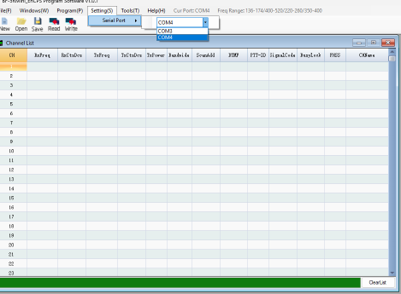
Select the COM port for your Baofeng programming cable. If you’re not sure which one is correct, unplug the cable and check which ports are available under Settings → Serial Port — the correct port is the new one that appears once you plug the cable back in.
STEP 5
Import your image
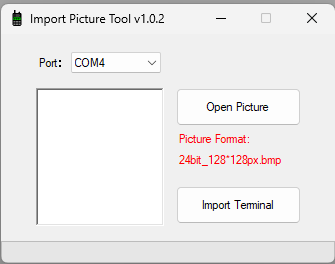
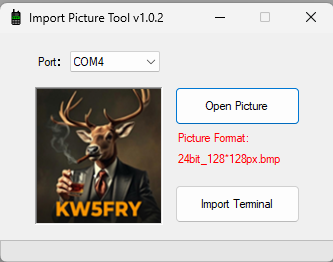
Go to Tools → Import Picture Tool. Select your COM port again, then click Open Picture to load your image. If your image isn’t a 24-bit bitmap sized 128×138 pixels, you’ll get an error and won’t be able to load it. If it loads correctly, you’ll see it shown in the image field, as below.
STEP 6
Upload the image to your radio
Click Import Terminal to load the image onto your radio. Your radio’s screen will show “Programming,” then restart and display your new image on startup. That’s it!
Tip
You can also use the CPS software to program channels on your radio, although CHIRP is still the preferred tool for that.